

Getting started
Your personal Dashboard
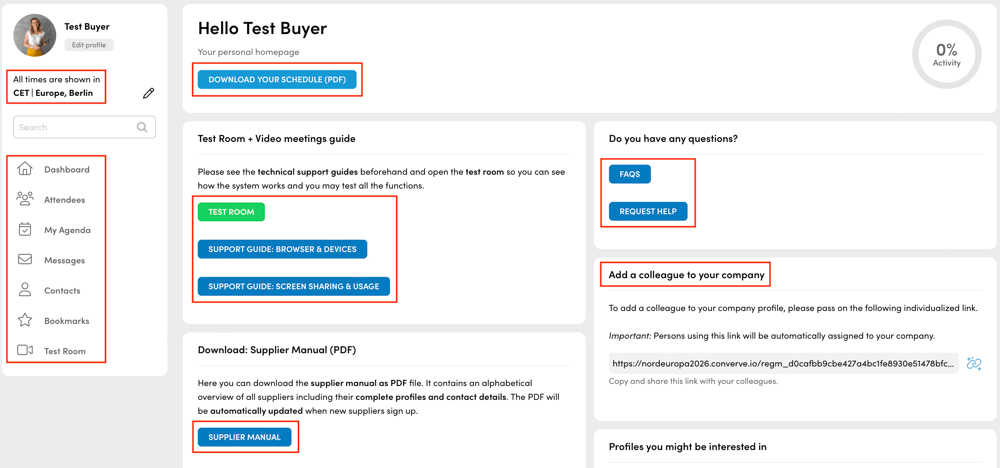
After login you end up on your personal event dashboard. On the left side below your profile picture you find the navigation bar.
Navigation bar
- Dashboard: your personal dashboard
- Attendee: leads you to the overview of buyers/ suppliers (note buyers only see suppliers and vice versa)
- My Agenda: leads you to your schedule per meeting day, declined meetings and the waiting list
- Messages: your inbox, there you find your communications with buyers/ suppliers
- Contacts: Contacts in your profile are generated once you have requested or arranged meetings with other participants
- Bookmark: a filtered list of buyers/ suppliers you can select under “attendees” by marking suppliers/ buyers with a star
- Test room: to test your hardware and software setup prior to the event
Your time zone
Below your profile picture you find your time zone you entered in your profile. Your meetings will be displayed in your time zone in your agenda. Officially, the event takes place both days from 9-18 h Central European time.
Your schedule
Your personal meeting schedule for the event can be downloaded as PDF file.
Questions and Support
At prominent location you find two important blue buttons if help is needed:
- FAQs: a lot of questions regarding the use of the tool are answered there
- Request help: you may always contact us via this function and we try to help asap
Test Room & Video Meeting Guides
On the right side you find three more important buttons:
- Technical support guides: the buttons lead you to two guides offered by the video software provider which guide you to use the right browsers and devices and explain how screen sharing works
- Test room: we strongly recommended to test the video functions before the actual event take place
Add / Invite colleagues
This is the best option to to grow your team for the event. Profile admins see the box called "Add a colleague to your company" which includes a link. Via this link, they can register and will automatically be assigned to your company. Please note, this box will disappear once the limit of team members is reached.
For buyers: Your team can consist of max. 5 colleagues each having an individual schedule.
For suppliers: Your team can consist of max. 2 colleagues each having an individual schedule. It is also possible to attend with 2 persons with shared calendars. In that case, please contact us.
Participant lists and manuals
It might well be that you won’t be able to schedule meetings with every supplier/ buyer you are interested in. In order to follow up or get in touch later you will receive the contact details of all participants. PDF catalogues and contact information from buyers and suppliers will be available shortly prior to the event. Please note, buyers will only receive a supplier manual and vice versa.
Your profile
Complete your profile
To use the meeting platform and its functions to the fullest, please make sure that your profile is complete. Your dashboard lets you know what could be still improved.
|
Suppliers: |
Buyers: |
|
|
|
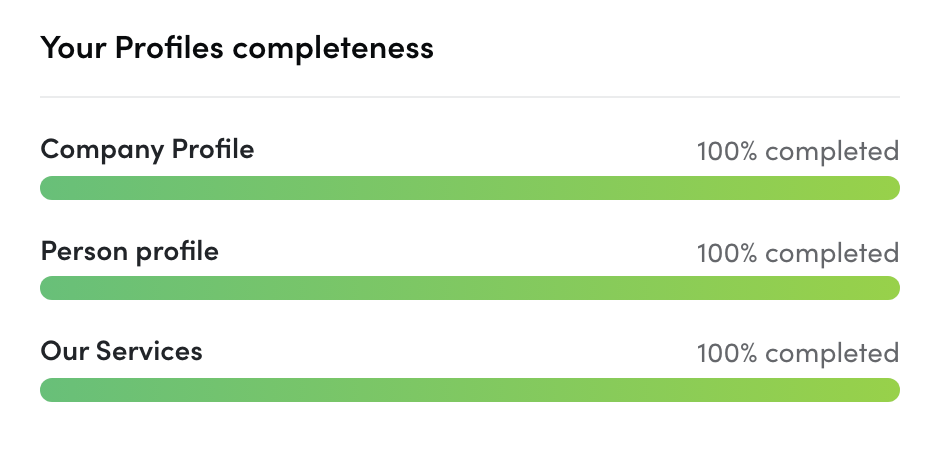
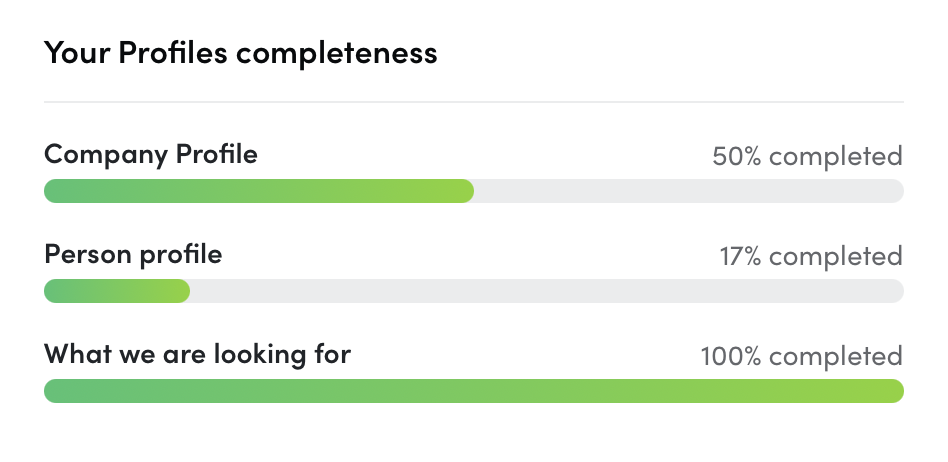
This is the basis to present your company. All the details you provide (except VAT) will be visible to buyers/ suppliers in your online profile and later on available in the supplier and buyer manuals as well.
This is the basis to be able to request and accept meetings. During the phase of matchmaking, your name, title, e-mail address, phone number (if provided) and profile picture are visible to the supplier/ buyer.
Your networking profile called "Our Services" is crucial for successful matchmaking and meetings as the keywords concerning accommodation, activities, etc. are the basis of matchmaking. Hence, the more precise and complete your information is the better you profit from the matchmaking.
Note: There's only one networking profile per company and it is assigned to all team members. Everyone can edit it anytime prior or during the event.
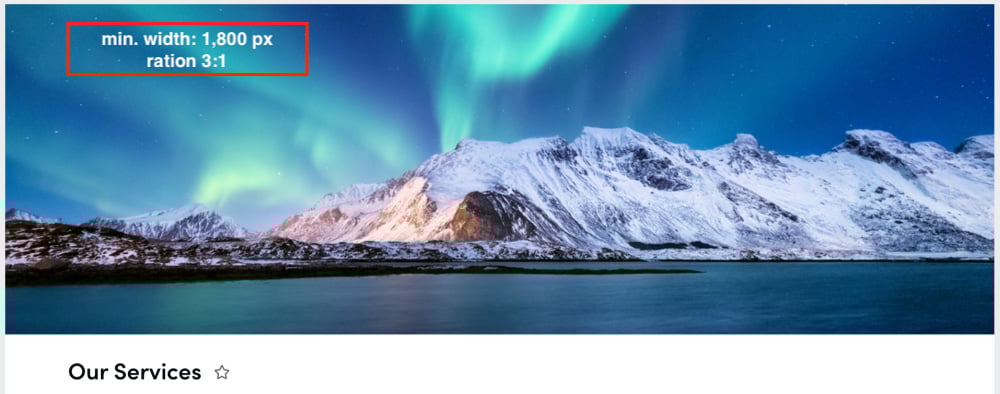
Requirements for the ideal display of your product picture:
Your networking profile called "What we are looking for" is crucial for successful matchmaking and meetings as the keywords concerning accommodation, activities, etc. are the basis of matchmaking. Hence, the more precise and complete your information is the better you profit from the matchmaking.
Please focus on services and themes you are particularly looking for during this event.
Note: There's only one networking profile per company and it is assigned to all team members. Everyone can edit it anytime prior or during the event.
Meeting management
Setting up meetings at NORDEUROPA 2026
An important information first: Requesting meetings is enabled for both suppliers and buyers.
Matchmaking starts as of 07.01.2026.
→ Buyers can request meetings with suppliers.
→ Suppliers can request meetings with buyers.
Important: In the beginning meeting requests expire after three days if a request remains unanswered. From approx one week prior to the event meeting requests expire after 1 day.
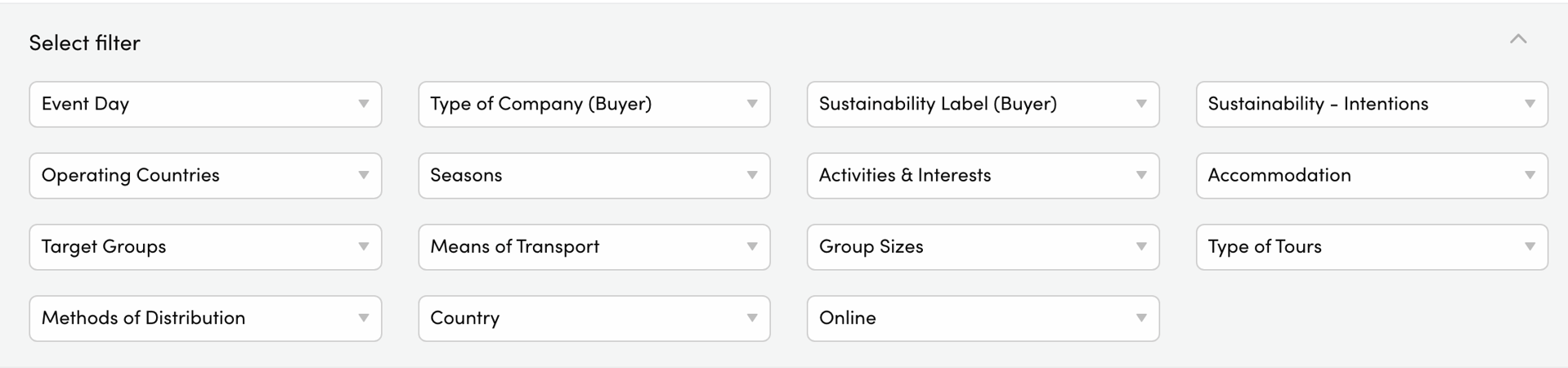
When you open the list of attendees you can filter buyers according to different parameters and keywords:
- Event Day: attendance on both day or only one day
- Type of Company (Buyer): specifies the type of buyer
- Sustainability label/ intentions: certified TOs or those with intentions
- Operating Countries: countries that are already covered in the portfolio
- Seasons: the times of the year relevant for the tour operator
- Activities & Interests: types of interest and relevance for the tour operator
- Accommodation: preferred and relevant type of accommodation for the tour operator
- Target Groups: guest categories served
- Means of Transport: preferred and relevant types of travel
- Methods of distribution: distribution channels of the tour operator
- Group Sizes: different groups sizes that are served
- Type of Tours: types of tours of high relevance
- Country: the country the tour operators operates in
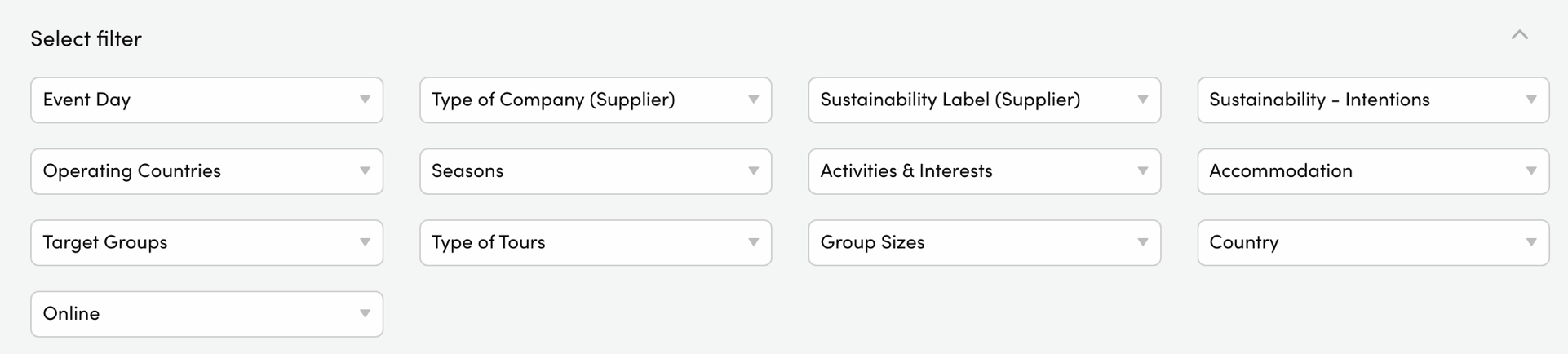
When you open the list of attendees you can filter suppliers according to different parameters and keywords:
- Event Day: attendance on both day or only one day
- Type of company (Supplier): specifies the type of supplier, e.g. accommodation, activity provider, attraction, etc.
- Sustainability label & intentions: certified suppliers or those with intentions
- Operating countries: the countries in which services are offered
- Seasons: operating seasons
- Activities & Interests: offered activities
- Accommodation: offered accommodation categories
- Target groups: guest categories focused on
- Type of Tours: supplier offer matching your prioritized types of tours
- Group Sizes: suppliers with capacities to serve your groups
- Country: the country the company is based in
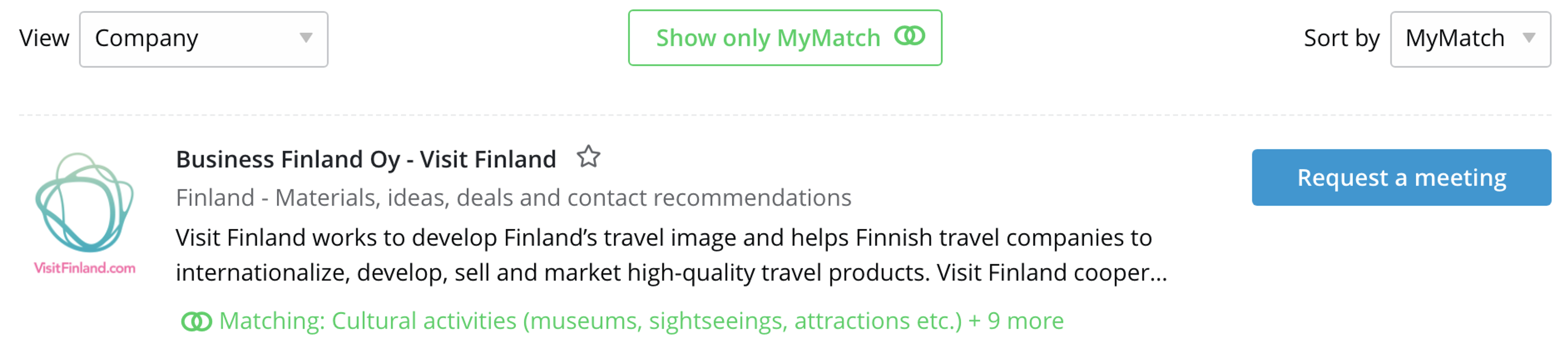
The platform suggests you relevant meeting partners based on the information in your networking profile and in those of potential meeting partners.
These matches will be displayed when clicking on “Show only MyMatch”.
Watch the following video to learn how to request a meeting.
- Click on the profile of the buyer/ supplier
- Select the contact person you’d like to meet
- Click on “Request a meeting” next to the person profile
- Choose the day first
- Select the time by opening the dropdown list below the days. Please note that it is only possible to request a meeting when both parties are available at the same time. The system indicates when you or the buyer/ supplier are not available and therefore time slots cannot be used.
- Recommended: Send a short personal message when requesting a meeting
- The buyer/ supplier will be notified via email about your meeting request
You will be automatically notified via email from the system when…
- you receive a new meeting request
- your meeting request is accepted
- your meeting request is declined
- you receive a message
- your meeting partner needs to move the meeting
- your meeting partner needs to cancel the meeting
Conducting video meetings
Your way to successful video meetings
This part should help you to find out how to conduct video meetings at the online sales workshop NORDEUROPA 2026. Below are our recommendations and guidelines.
General video call tips & tricks
- Use headphones or a headset to minimize background noise and stay focused.
- Mute yourself when not speaking to avoid distractions or echoes.
- Ensure your browser is up to date; Chrome or other Chromium-based browsers offer the best experience.
- Confirm that your browser has permission to access your camera and microphone, and test them before your call.
- Mac: Camera Permissions | Microphone Permissions
- Windows: Camera and Microphone Privacy
Step 1: prior to the event
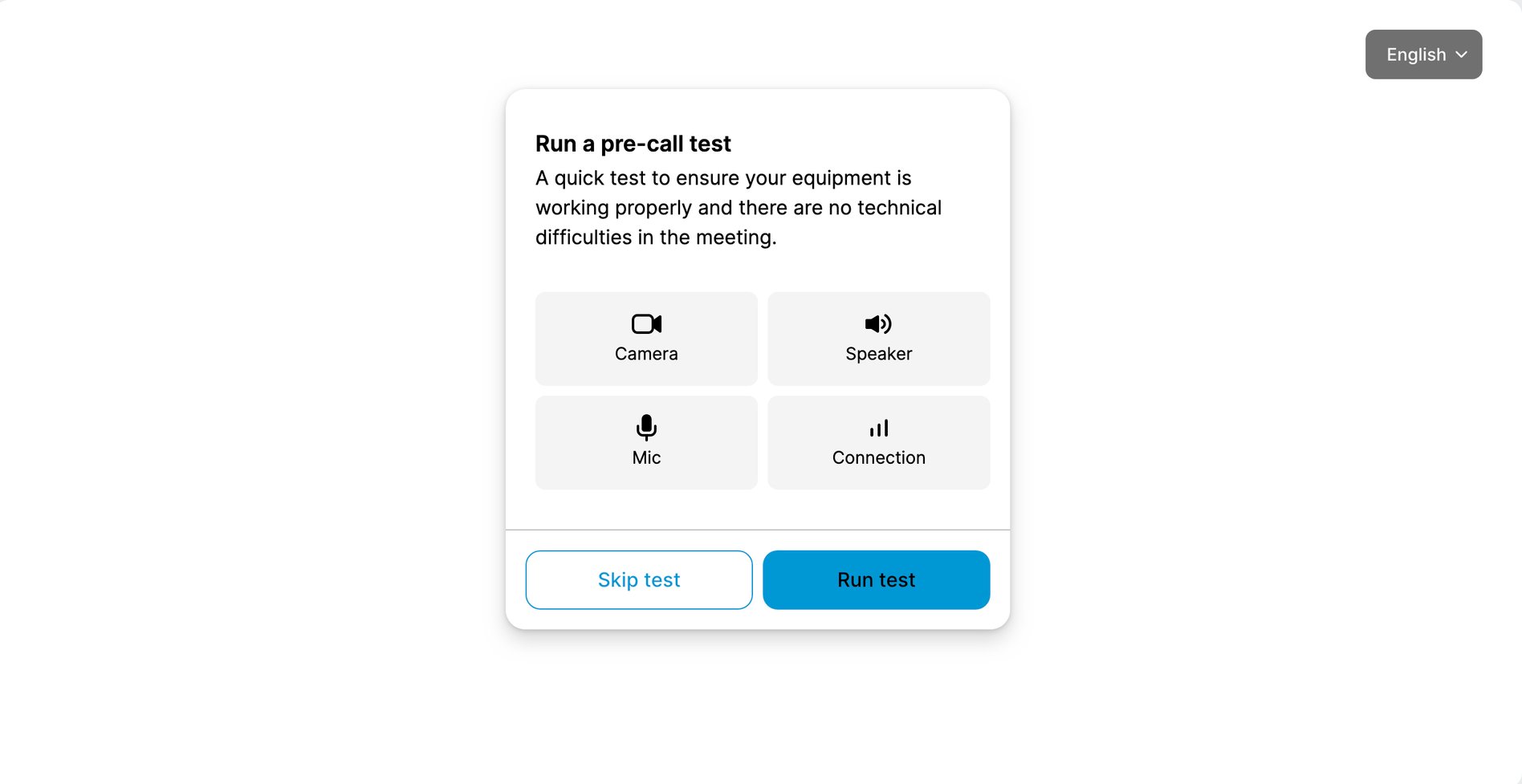
Please test the audio and video functions prior to the event to ensure that your meetings run smoothly. You find the green button "test room" in your personal dashboard.
Requirements & video meeting test function
We strongly recommend you to conduct your meeting at NORDEUROPA 2026 at a computer/ notebook as the screen sharing function is not possible on mobile devices.
Please check this support guide "supported browsers & devices" for more details.
To enable sharing a file or selected window during your meetings, the first step is to ensure that screen-sharing is allowed at the operating system level for the browser you use.
For Mac users:
- Select Menu “Apple” Image > “System Preferences” and click on “Privacy & Security” Image in the sidebar. (You may need to scroll down.)
- Click “Screen & System Audio Recording” on the right.
Enable or disable the ability to record for each app listed. - You can allow apps to record both your screen and audio or just audio.
Then make a restart and try again.
If your operating system is Windows, find more information here or ask your IT department for help.
Please make sure to use the latest versions:
- Google Chrome
- Microsoft Edge (Chromium, 2020 or later)
Also working, but might be slower and less reliable: Firefox, Safari
Not supported: Internet Explorer
Please check this support guide "supported browsers & devices" for more details.
Allow Converve to access your camera and microphone in your browser.
1️⃣ macOS – System-Level Settings
Camera
- Open System Settings → Apple menu → System Settings → Privacy & Security → Camera
- Toggle access for each app (e.g. Chrome, Edge) on.
- Built-in apps (FaceTime, Photo Booth) have default access.
- Green light indicates active camera.
- System Settings → Privacy & Security → Microphone
- Toggle access for each app on/off.
- Microphone indicator in Control Center shows usage.
⚠️ Browsers (Chrome, Edge, Firefox) are considered apps. Make sure they have access here.
- Settings → Privacy & security → Camera (Win 11)
or Settings → Privacy → Camera (Win 10) - Turn Camera access ON
- Turn Let apps access your camera ON
- Scroll list → toggle access per app.
- Turn Let desktop apps access your camera ON for non-Store apps (e.g., Chrome, Zoom, Teams).
- Settings → Privacy & security → Microphone (Win 11)
or Settings → Privacy → Microphone (Win 10) - Turn Microphone access ON
- Turn Let apps access your microphone ON
- Scroll list → toggle access per app
- Turn Let desktop apps access your microphone ON for traditional programs.
- Camera icon
- select the camera
- start/ stop your camera
- change/ blur your background
- more settings: video resolution, mirror video, etc.
- Microphone icon
- select the microphone
- activate/ unmute your microphone
- other settings: noise reduction
- Screen icon
- share your complete screen, a specific window, tab or application, e.g. PDF or PowerPoint Presentation
- chat icon
- open and close the chat and send messages
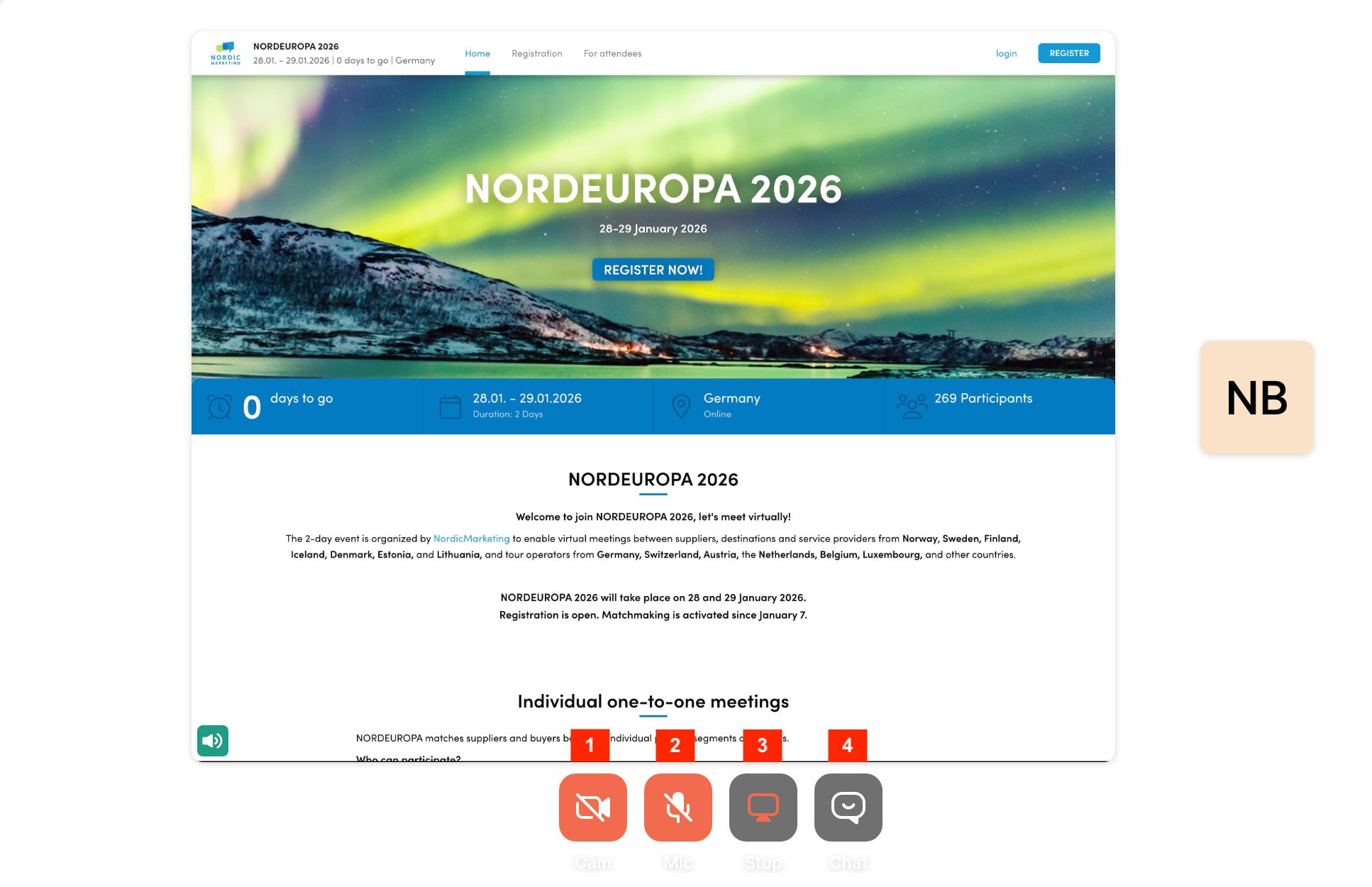
Please check this support guide "screen sharing setup & usage" for more details.
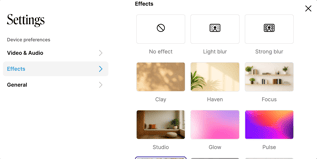
It is possible to blur or change the background in the meeting tool. You find this option in the camera settings under "background effects" when you open the video tool (note: latest versions of Chrome, Firefox or Edge required).
How you share your screen is, of course, up to you and depends on your browser. But please note: Use a computer/ notebook as the screensharing function is not possible on mobile devices.
With Google Chrome, you have three options:
- You can select a specific tab in Chrome to share,
- a window from another program (e.g. Adobe Acrobat Reader/ Preview (Mac) to open PDFs),
- or simply your entire screen.
If you have trouble, check this:
Operating system: Check your security & data protection settings
To enable sharing a file or selected window during meetings, the first step is to ensure that screen-sharing is allowed at the operating system level for the browser you use.
- MacOS Permissions:
- Select Menu “Apple” Image > “System Preferences” and click on “Privacy & Security” Image in the sidebar. (You may need to scroll down.)
- Click “Screen & System Audio Recording” on the right.
Enable or disable the ability to record for each app listed. - You can allow apps to record both your screen and audio or just audio.
- Then make a restart and try again.
Source: https://support.apple.com/en-euro/guide/mac-help/mchl211c911f/mac
- Windows Permissions: At the moment Windows doesn't have any system-level permissions for screen access. if you're running into problems or getting an error, double-check your browser settings.
- Chrome and Chromium (E.g. Edge): At the moment Chrome doesn't have any specific settings related to screen access.
Our recommendation is: PDF instead of PowerPoint. It proves to work smoother during a meeting.
However, it is technically possible to share a PowerPoint, but if you only want to display the presentation (in full screen), you as a presenter will only see the full screen and no longer the browser.
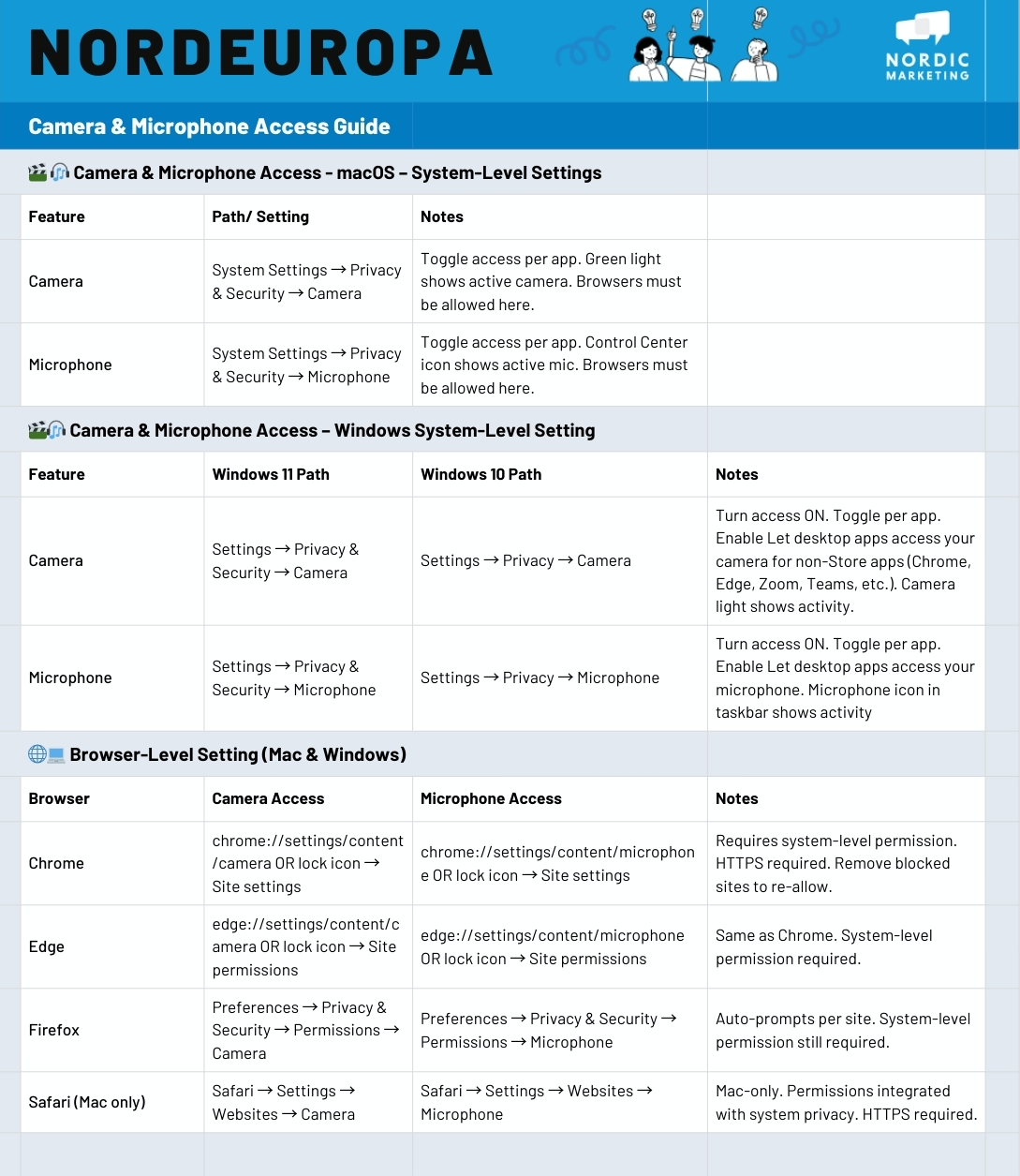
| Operating system/ browser | Camera Access Path | Microphone Access Path | Notes / Tips |
|---|---|---|---|
| macOS System | System Settings → Privacy & Security → Camera | System Settings → Privacy & Security → Microphone | Toggle access per app. Built-in apps like FaceTime have default access. Browsers must be allowed here. Green light = camera in use, Control Center icon = mic in use. |
| Windows 11 System | Settings → Privacy & Security → Camera | Settings → Privacy & Security → Microphone | Turn access ON. Toggle per app. Enable Let desktop apps access… for traditional apps (Chrome, Edge, Zoom, Teams, etc.). Camera light & mic icon indicate usage. |
| Windows 10 System | settings → Privacy → Camera | Settings → Privacy → Microphone | Same as Windows 11; system-level permission required for desktop apps. |
| Chrome (Mac & Windows) | chrome://settings/ or lock icon → Site settings |
chrome://settings/ or lock icon → Site settings |
Per-site permissions. Requires system-level access. HTTPS required. Remove blocked sites to re-allow. |
| Edge (Mac & Windows) | edge://settings/ or lock icon → Site permissions |
edge://settings/ or lock icon → Site permissions |
Same as Chrome. System-level permission needed. |
| Firefox (Mac & Windows) | Preferences → Privacy & Security → Permissions → Camera | Preferences → Privacy & Security → Permissions → Microphone | Auto-prompts per site. Works without extra system-level settings, but system permission still required. |
Step 2: on the days of the event
Make sure to be prepared for your meetings well in time. If you want to share your screen during your meeting, you ideally have your material already open in the right format.
How to meet your meeting partners virtually
On the days of the event, login to the platform and open “My Agenda” on the left side.
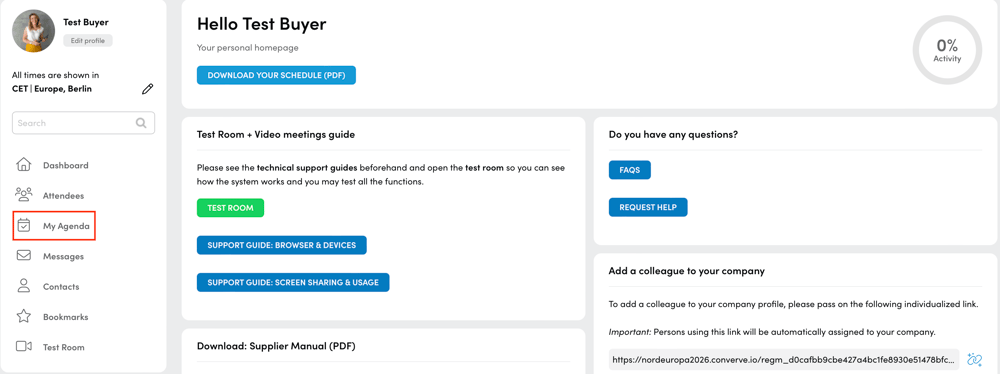
Both the opening session and your scheduled meetings can be accessed via “My Agenda”. When it is time for your meeting click on the button “Start Video Meeting”
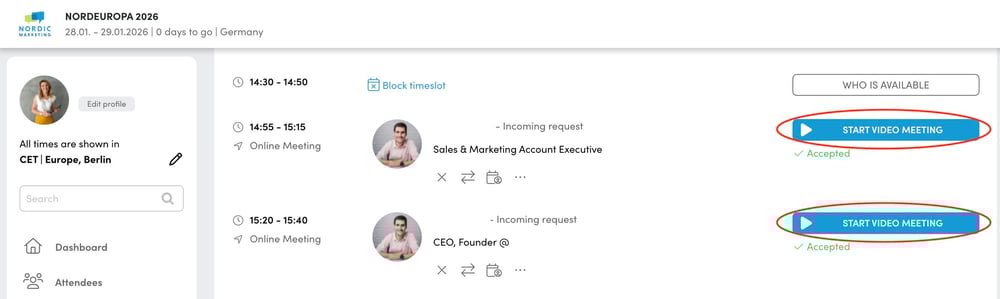
If you wonder how it technically works to meet with three people, don't worry.
All participants have the meeting scheduled in their calendar and only need to click on the "Start Video Meeting" button at the specified time. The software manages the conference call in the background, so you do not have to do anything.
FAQ
Popular Questions and Answers
Yes, you can reduce your availability on your calendar by blocking time slots separately.
No, you don't need to download any software or application. Standard web browsers are completely sufficient. But, a webcam, microphone, and speakers or headphones are required.
Based on your interest and networking profile, the system provides suggestions of potential meeting partners for you. It is also possible to filter exactly the type of participants you are looking for. Potential matches can also be save to your favorite list (Bookmarks).
Besides this matchmaking feature, it is possible for every seller to request meeting with every buyer and vice versa. Everyone decides on their own whether to accept or decline a meeting.
Yes, your meeting schedule is available as PDF to download.
Yes, you can sync your meeting agenda with your own calendar (e.g. Google, Outlook, iCal, etc.). The option can be found under "My Agenda" in your personal dashboard.
The video meeting is not ended automatically, but only by pressing the red button. A pop-up message appears before the last three minutes begin so you'll be notified about the remaining time.
If both meeting partners are free in the consecutive meeting slots, you can continue your meeting. Otherwise, we recommend making an appointment outside the NORDEUROPA event to continue the conversation.
Yes. As soon as you are registered as buyer / supplier, you find the contact details in the profiles of the buyers/ suppliers. Please note, that buyers only see suppliers and vice versa.
In addition, prior to the event you find a buyer resp. supplier manual to download in your dashboard.
The appointment is taking place at an online meeting table. You’ll be virtually connected with your meeting partner via video and audio. If you’d like to show a video or show a presentation, screen sharing is possible.
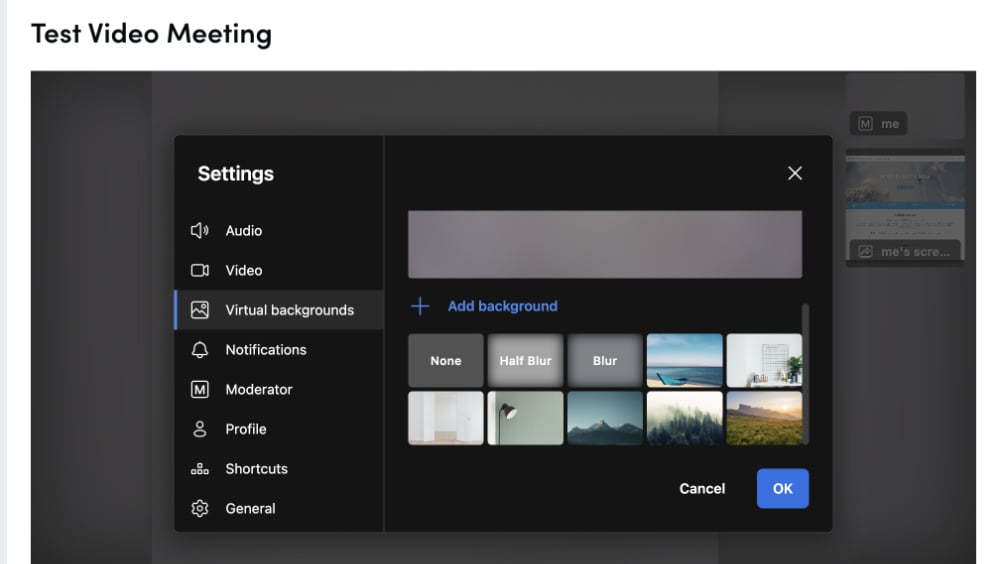
It is possible to blur or change the background in the meeting tool. You find this option in the settings when you open the video tool (note: latest versions of Chrome, Firefox or Edge required). You have to scroll down a bit in the camera view window to see the different backgrounds.
Yes, there is the option to send private messages to buyers/ suppliers if you e.g. want to chat before the actual meeting or need to postpone your meeting and would like to agree on an alternative appointment.
Please note, messaging is only possible when the matchmaking starts.
We strongly recommend you to conduct your meeting at NORDEUROPA 2026 at a computer/ notebook as the screen sharing function is not possible on mobile devices.
Please check this support guide "supported browsers & devices" for more details.
Theoretically you may use any device (computer, tablet, smartphone) that is equipped with audio and video, but the provider strongly recommends using a computer as the system works best there.
For the supplier side: Note that screen sharing is not supported on mobile devices.
Please make sure to use the latest versions:
- Google Chrome
- Microsoft Edge (Chromium, 2020 or later)
Also working, but might be slower and less reliable: Firefox, Safari
Not supported: Internet Explorer
Please check this support guide "supported browsers & devices" for more details.
1) If your colleague is registered: you can add your colleague to your meeting by clicking on the 3 dots and "add another person" under the respective meeting.

Notes: You will not see the 3 dots if you do not have a colleague registered. The option is only visible if a colleague is registered and has a separate schedule. If you already have a joint schedule with your colleague they will automatically see the meeting in their agenda.)
2) If your colleague is not registered: you can share your username and password to your colleague. Your colleague will be able to login to the platform at the same time as you and access the same meeting from your Agenda.
- Use a computer/ notebook as the screen sharing function is not possible on mobile devices.
- To enable sharing a file or selected window during meetings, the first step is to ensure that screen-sharing is allowed at the operating system level for the browser you use.
For Mac users:- Select Menu “Apple” Image > “System Preferences” and click on “Privacy & Security” Image in the sidebar. (You may need to scroll down.)
- Click “Screen & System Audio Recording” on the right.
Enable or disable the ability to record for each app listed. - You can allow apps to record both your screen and audio or just audio.
If your operating system is Windows, find more information here or ask your IT department for help.
- Double check if no other program uses camera/ microphone at the same time.
- Select correct camera and microphone: In the video meeting tool, go to the settings wheel and check if right microphone/ camera is used.
- Check, if your camera is covered with a slider and open the slider if previously closed.
- Check to run the latest version of the browser (Chrome, Edge - advised, otherwise Firefox).
- Check device and browser settings: Check your system settings and verify Converve to access your camera and microphone in your browser:
Mac: Camera Permissions | Microphone Permissions
Windows: Camera and Microphone Privacy
Another option is sharing a video link in the chat so that your meeting partner could watch it in the own device.
We recommend you test this in advance with two persons to create a meeting situation. The test room in the Converve dashboard is available for testing at any time.
First, enable system-level access - that means checking your privacy & security settings for camera and microphone on your computer.
Second, check the browser-level setting.
Here's a compact overview on our Camera & Microphone Access Guide:
No, regardless of the type of company, every supplier is equally presented in Converve with an own company, person and networking profile. Within the meeting tool, every company is independent and there is no visible connection to the destination.